Fishing Game on a Phone or PC: What Changes When Data or Signal Is Limited?
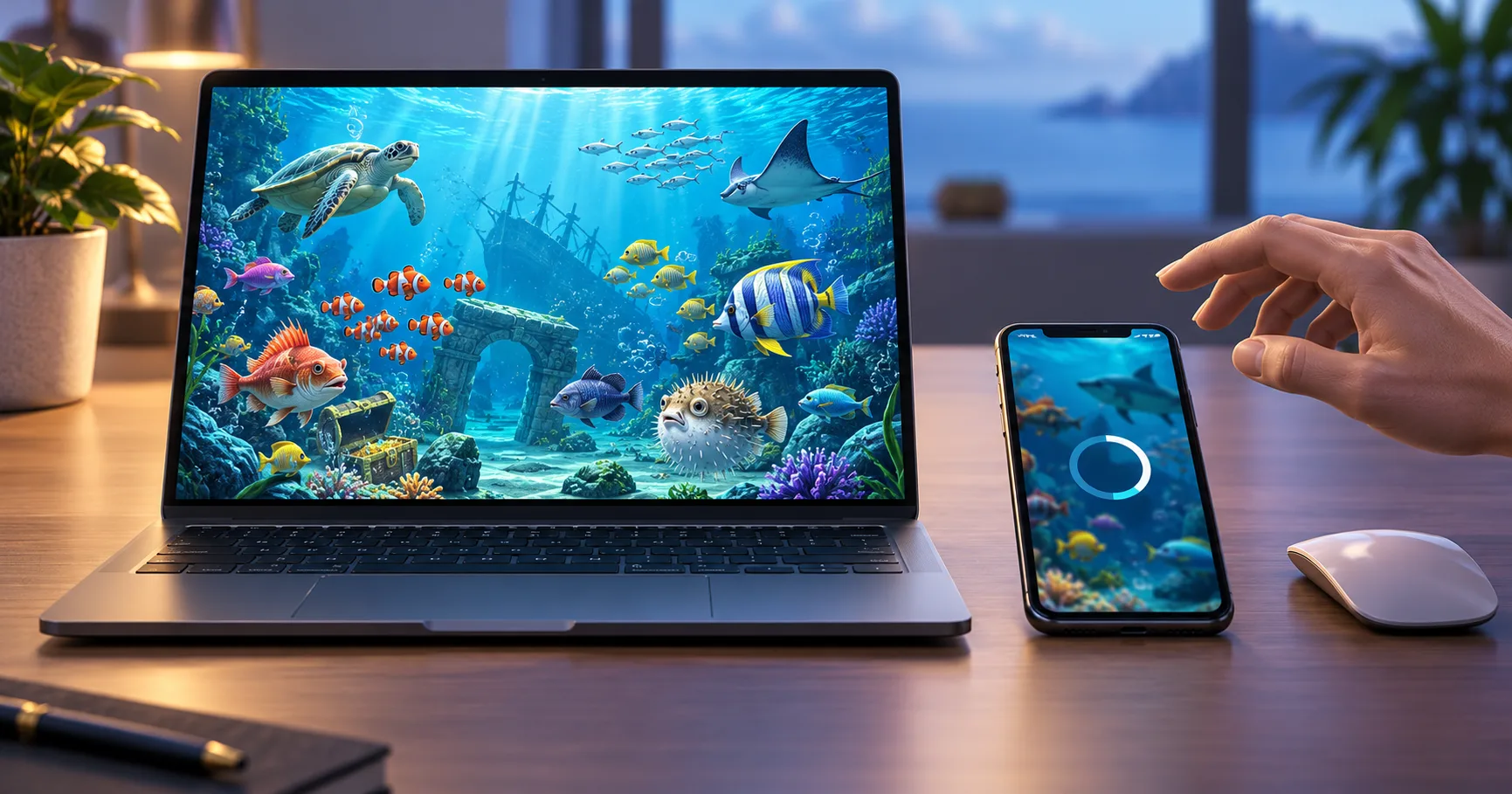
Suppose you have 200 MB of mobile data left and want to play a Fishing Game for 12 minutes. Here is a hypothetical comparison, not a measurement of any particular game: a browser loads 2 MB at the start and uses 1 MB per minute, while an app requires a 120 MB download and then uses 0.8 MB per minute. The browser session uses 2 + (12 × 1) = 14 MB, leaving 186 MB. The first app session uses 120 + (12 × 0.8) = 129.6 MB, leaving 70.4 MB. If the app is already installed and needs no update, the same assumed session uses only 9.6 MB.
The arithmetic shows why “app or browser?” has no permanent answer. Downloads, updates, cached artwork, video and live messages all affect data use. Your phone can show what was actually consumed. The rules of a round, however, should not change because you chose a different screen: what matters is the game state recorded by the service, not how quickly an animation reaches you.
If you have limited data, count the download before the round
A mobile browser can open a game without installing a separate app, but it may download artwork and sound again when its cache is cleared. An installed app can keep some assets on the device, yet its first download or later update may outweigh several short sessions. Neither route has a fixed data advantage. A game with moving targets and continuous effects can also transfer data differently from a static page, even when both open in Chrome or Safari.
For a first session on Android or iPhone, treat the download and the play session as separate costs. If you are on Wi-Fi for installation, the app’s initial size may have little effect on your mobile allowance. If you must use 4G or 5G data, an update prompt can change the calculation before you even enter the game. The practical comparison is the data your device records for the entire session, including loading and reconnecting.
- Check the app download size or browser loading requirements before using a mobile allowance that must last the rest of the day.
- On Android, inspect the app’s data usage; on iPhone, check cellular usage and reset the counter before a measured session.
- If you play in Chrome or Safari, remember that the browser’s usage figure can include other sites opened during the same period.
- Compare one 12-minute session on each route under similar conditions, counting an app update separately if one appears.
That comparison is useful only when the game, visual settings and connection are reasonably similar. A 12-minute session with sound and effects enabled may differ from one with those features switched off. Record what you changed, then choose the route that suits your actual data allowance.
If the signal weakens during a shot, separate the screen from the record
A Fishing Game can keep drawing fish on your screen while messages to the service slow down. The opposite can happen too: a shot may be recorded before your phone shows its result. A frozen animation alone cannot tell you whether a stake was accepted or what the outcome was. The round or transaction history is the place to check after the connection returns.
Latency is the delay between sending an action and receiving its response. A connection can show 4G or 5G and still pause briefly as the phone changes towers or the network becomes busy. Home Wi-Fi can also fail when the router is distant or crowded. A wired desktop connection often avoids wireless interruptions, but the game service and internet route still affect what you see.
- If a shot freezes, stop tapping and wait for the game to respond; repeated taps may create additional actions after the delay clears.
- Once connected, reopen the game or account history and match the round, balance change and displayed result before playing again.
- If the record and screen disagree, save a screenshot of the history and note the approximate time and amount involved.
- Use the game’s support route to ask which action was recorded, referring to the round identifier if the history shows one.
Refreshing the page may clear a stuck display, but it does not establish whether the earlier action counted. Likewise, switching from a phone to a PC changes your view, not the status of an action already recorded. Check the history before making a second attempt.
If targets feel cramped, compare control accuracy
A phone gives you a direct tap on the target and is convenient for a brief session. The same small display can place moving fish, controls and balance information close together. A thumb may cover the exact point you are trying to select. Turning the phone sideways can help if the game supports landscape view, though menus may still occupy part of the screen.
A desktop monitor spreads those elements across more space. A mouse can make it easier to point at one moving target without hiding it, especially when several targets overlap. That advantage fades if the desktop browser is zoomed too far out or the pointer lags. Screen size improves visibility; it does not change the rules that determine a result.
Before spending money, look at the same game on both devices if both are available. Find the stake control, the balance and the round history without starting a paid action. On a phone, check whether a tap near the edge selects the intended control. On a PC, check whether browser zoom or full-screen mode makes the important controls easier to distinguish. Choose the view in which you can tell what you are about to do.
If you switch devices, verify the same account state
Moving from an app on your phone to a browser on a PC should be treated as a fresh view of your account. Sign in to the intended account and allow its balance and history to load before comparing the screens. If one view appears behind, refreshing it can reveal a newer state. Do not assume the larger screen has a different balance simply because it displayed an older one.
The same principle applies to a promotion. A Bonus may affect which balance is used or which games qualify, but installing an app does not itself rewrite the offer’s terms. Free Credits can also have conditions that matter more than the device used to play. Check the promotion’s terms page for eligibility, expiry and wagering requirements, then check the account wallet for the balance actually available. These conditions follow the offer and account, not the size of the screen.
For example, imagine a hypothetical PHP 500 cash balance and PHP 100 in promotional credit displayed in separate wallets. The visible total is PHP 600, but adding the two figures does not tell you whether both can be used in the Fishing Game. The terms and wallet labels decide that. A phone layout might hide the wallet switch inside a menu, while a desktop layout shows both balances together. The underlying restriction remains the same.
If you need a reliable session, test the route you will actually use
A speed test measures general network performance, not whether a particular game session will remain smooth. A more useful check is whether the game loads fully, responds to a single input and updates its history on the connection you plan to use. Test on the same Wi-Fi, 4G or 5G route that will carry the paid session. If the phone repeatedly drops from Wi-Fi to mobile data, it may be difficult to judge both stability and data cost.
- Open the game on the intended device and wait until moving elements and controls have loaded before judging responsiveness.
- Check that the balance and history refresh correctly after leaving the screen and returning to it.
- Keep enough battery for the session; if your phone is near 15%, charging first reduces the chance of an abrupt shutdown.
- When comparing Wi-Fi with mobile data, use the route that stays responsive through loading and history checks, not the stronger-looking icon.
The 15% battery point is a personal planning threshold, not a game requirement. You can choose a different threshold, but decide before play rather than when the screen is already dimming. A short session on a stable browser connection can be preferable to an installed app on an unstable one. If the browser repeatedly reloads large assets while an app stays responsive, the app may be the better fit instead.
If the choice is close, use the device that makes mistakes easier to catch
Data use matters when the allowance is tight, and connection stability matters whenever an action could be interrupted. For a first-time player, visibility deserves equal weight. You should be able to see the selected stake, current balance and result history without guessing or repeatedly opening menus.
Use a phone when its controls are clear, its connection is steady and the data cost fits your allowance. Use a PC when the wider view helps you distinguish targets or inspect the account record. Recheck those conditions whenever you change networks, update an app or use a different browser. The reliable choice is the one that lets you understand each action and confirm its recorded result.